
Release Digest: Select Mode, Rebuilt eSOPs, Signed-Off Counts, an In-Portal Help Center and More
Another full week in APB360, and everything below is live in the APB360 portal now. You can pick hundreds of assets on an inventory report and change or move them in one step. The eSOP and eTraveler pages have been rebuilt from the ground up. An inventory reconciliation is now a recorded count that a partner signs off. The new A&D forms have become the main forms. Manufacturers and importers get first-commerce records for the excise tax and the AMFR, and FFLs can check their NFA items against ATF’s NFRTR. Master users can import their own spreadsheets. And every page now has a help article one click away. Here is what changed since our last digest.
Select Mode: Work on Many Assets at Once
Every inventory report (global, a single location, or several locations) now has Select. Turn it on, choose the assets you want, and act on all of them together, instead of opening assets one at a time.
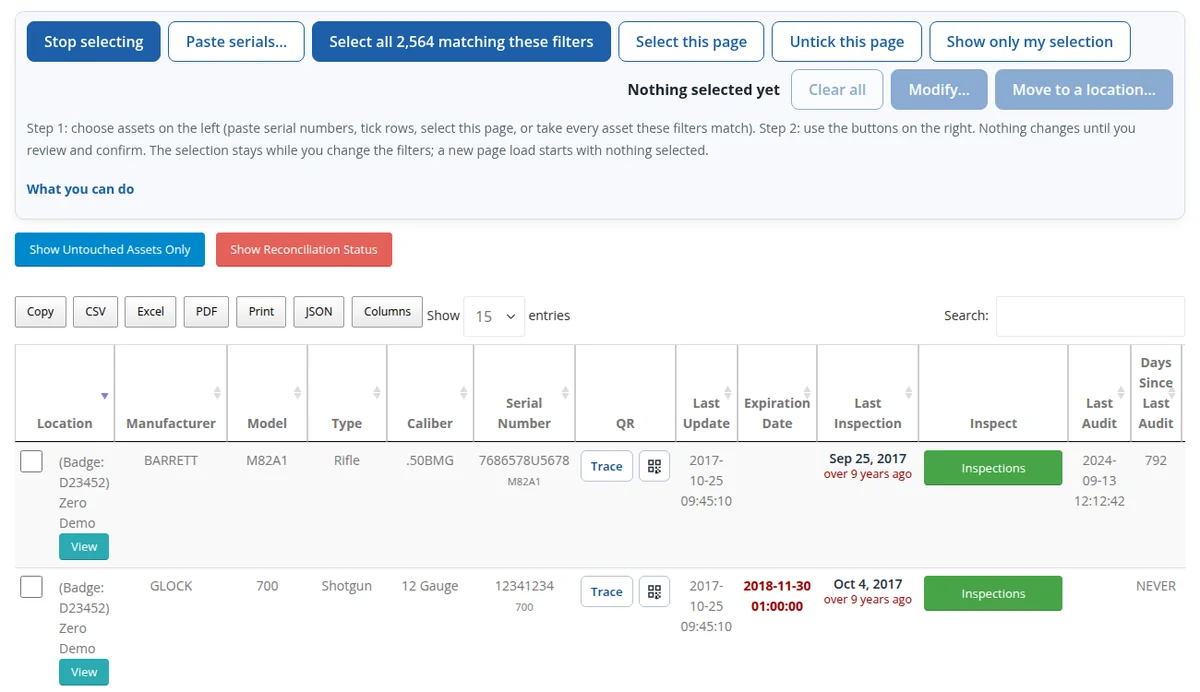
- Choose any way you like. Tick rows, select the page, take every asset your search and filters match, or paste a list of serial numbers straight from a spreadsheet. A paste of a thousand serials takes a moment, and APB360 lists any it could not find. The selection holds up to 20,000 assets and stays while you change filters.
- Modify them together. Change manufacturer, model, type, caliber, condition and other details on every selected asset, review the change old to new, and get a receipt with your name. A&D details are recorded as corrections in the A&D book, and everything else goes to the correction log.
- Add documents to all of them. Attach an invoice or a certificate, with its document type, to every selected asset at once. It shows in each asset’s Related Documents.
- Move them to one location, including back from employees.
- Bulk Asset Modification, rebuilt. Find assets by nearly any detail, apply a change to all of them or just the ticked ones, and follow it in chunks with a receipt you can export. A stopped run picks up where it left off without changing anything twice.
- Modify on the trace. The firearm trace has a Modify button that opens every detail of the asset in one card, and the trace header now shows the asset’s own purchase order, invoice, vendor and funding.
- Return from many employees at once. The Employee Custody Report has tick boxes on serialized and non-serialized holdings. Return Selected sends them all to one stocking location in one step.
Modify and documents are for master and compliance users. Move is also open to armorers. A user limited to some locations can only ever select assets in those locations.
eSOPs and eTravelers, Rebuilt
Every eSOP page has been rebuilt for speed and for phones. All of them are live now:
- eSOPs & Travelers: every eSOP and shared template in one searchable, exportable list showing its status, steps, items recorded and when it was last used. Duplicate now really copies an eSOP.
- Edit steps in one editor: rename, retype, drag to reorder, copy, remove and restore steps, then save everything at once. Unsaved changes are counted, and you are asked before you leave the page.
- New eSOP starts blank, from a starter template, or from one of your own eSOPs.
- Scan is built phone first: the key box ready for a scanner or the camera, one-tap Pass/Fail, a receipt on each step and Next scan always in reach. An item with photos opens in under a second.
- eSOP Search: one box for a serial, a value someone typed, or text read from a photo, with filters for eSOP, step, user, Pass/Fail, status and date range. Every search lives in the address, so you can share it.
- eSOP Metric and eTraveler Activity dashboards were rebuilt too. For our largest manufacturers, views that used to take more than half a minute now open in about a second.
Inventory Reconciliation: a Recorded, Signed-Off Count
A reconciliation is now a record. Pick the location (it and everything beneath it) and a partner from your roster who witnesses the count. The books at that moment become the expected list.
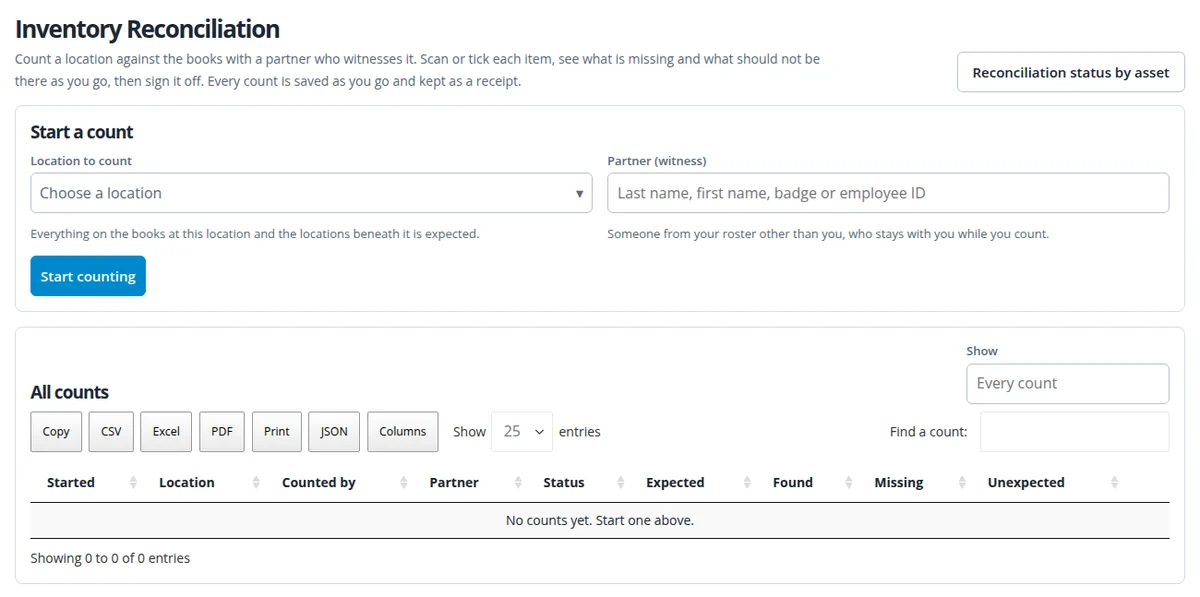
- Scan or tick each item by serial, barcode, RFID, EPC or internal ID. APB360 counts live what was found, what is on the books elsewhere, what is not on hand and what is not on the books at all.
- Saved as you go. If the connection drops, scans wait on the device and are sent when it comes back.
- Signed off by both people. Whatever was not seen becomes missing, the counts are frozen, and the receipt is kept for good, ready to print. Every count is listed in its own history.
- It never moves an asset or touches custody or the A&D book. Follow-ups, like flagging a missing item, are separate steps.
- Inventory Audit takes any number of photos per asset. Take or drop several at once. Each one uploads with its own progress bar, and you can retry any that fail.
Inspections: ISO Record Lookup and the Annual Inspection Report
- ISO Record Lookup is scan first. Scan or type a tag and see it as a record card with its status color, part, vendor, PO, quantity, photos and label to print again. It tells you when a lot has moved on to a newer tag and shows the part’s full timeline. Search by part, PO, vendor, label or note, and export the whole result.
- Annual Inspection Report, rebuilt: tiles for assets inspected in the last 12 months, due within 60 days, overdue or never inspected, and needing repair. The tiles filter the table. Each asset opens to its inspection timeline with checks, notes and photos.
- Inspect any serialized asset, not just firearms. Firearm-only checks stay with firearms.
The New A&D Forms Are Now the Main Forms
On the A&D logbook, every card now opens the new form for its kind of entry. The classic form is a small link beneath it for a short while longer. The new forms check each serial before anything is written, take up to 5,000 serials, are safe to send again, and end with a receipt. This week they gained:
- From or to an individual, business or trust, with the name and address rules of 27 CFR 478.125(e) for FFLs. For an FFL, the Form 4473 and NICS check stay outside APB360. Law enforcement agencies get their own version with a clear record-keeping warning.
- International import and export for FFLs: the foreign seller or buyer, and the country of manufacture on imports.
- A mixed list: one row per serial, each with its own manufacturer, model, type and caliber. Paste from a spreadsheet, generate a range, or set details on selected rows.
- Several documents per submission, each with its own type. An invoice, an ATF Form 6 and a DSP-5 can go together, with control numbers and submission, approval and expiration dates where they apply. Files upload the moment you add them, with a thumbnail, and show Uploaded only once the server has a good copy.
For Manufacturers and Importers: FAET & AMFR First Commerce
Manufacturers and importers (license types 07, 08, 10 and 11) now keep one first-commerce record per firearm. That record is the first sale, export or taxable internal use after the firearm was made or imported. It decides the federal firearms excise tax and whether the firearm counts as domestic or exported on ATF’s annual AMFR. Only the first one counts.
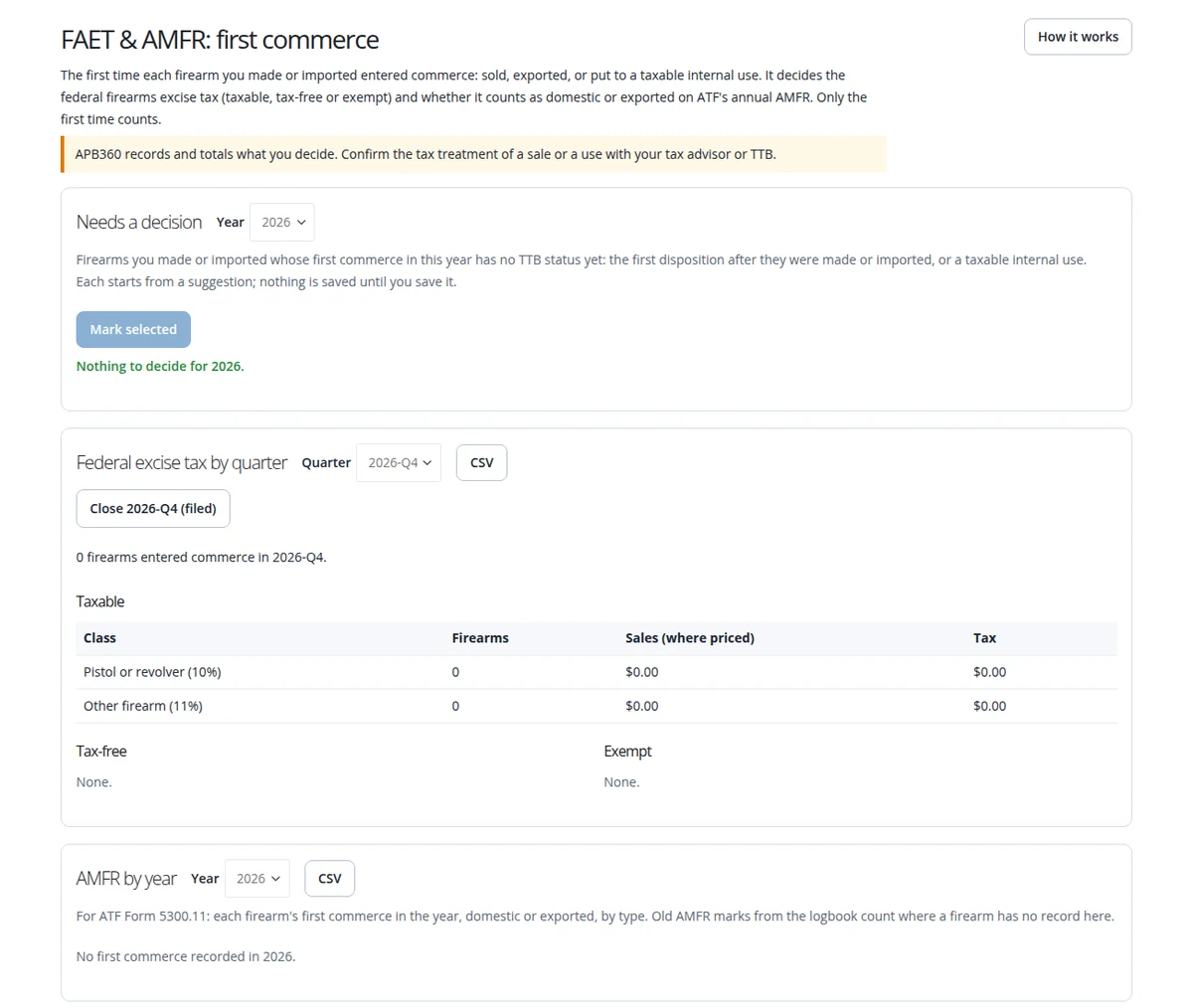
- Each record holds domestic or international, the date, the TTB status (taxable, tax-free with its reason and the buyer’s registration number, or exempt), the tax class, and an optional price.
- Federal excise tax by quarter, laid out for TTB Form 5300.26, with CSV and Close quarter. AMFR by year for ATF Form 5300.11, with CSV.
- Internal use counts. Name the purposes a firearm can be checked out for, such as a demo or a trade show, and mark which are taxable uses. A taxable use becomes the first commerce of a firearm that has none.
- Logbook Generation (BETA) reconciliation modes now let you tick disposition rows and act on them together: Reconcile, Mark AMFR (domestic or export), set first commerce, or Undo. A Reconciled filter finds rows reconciled, not reconciled, between two dates or in the last N days. The page opens on the Optimal, Reconciliation & AMFR layout.
- GS1 serials and EPC URNs. In an organization with a GS1 Company Prefix, every serial gets its own GS1 serial and EPC URN, built from the product’s item reference number. Existing assets are numbered when the prefix is saved.
APB360 records and totals what you decide. Confirm the tax treatment of a sale or a use with your tax advisor or TTB.
NFRTR: Your NFA Items in ATF’s Own Layout
FFL organizations now have an NFRTR page: every NFA item on hand, built from your own books, in the same columns and headings as the National Firearms Registration and Transfer Record listing ATF sends you. That includes the latest approved NFA form and its approval date, the ATF type, the MFG code, and the overall or barrel length.
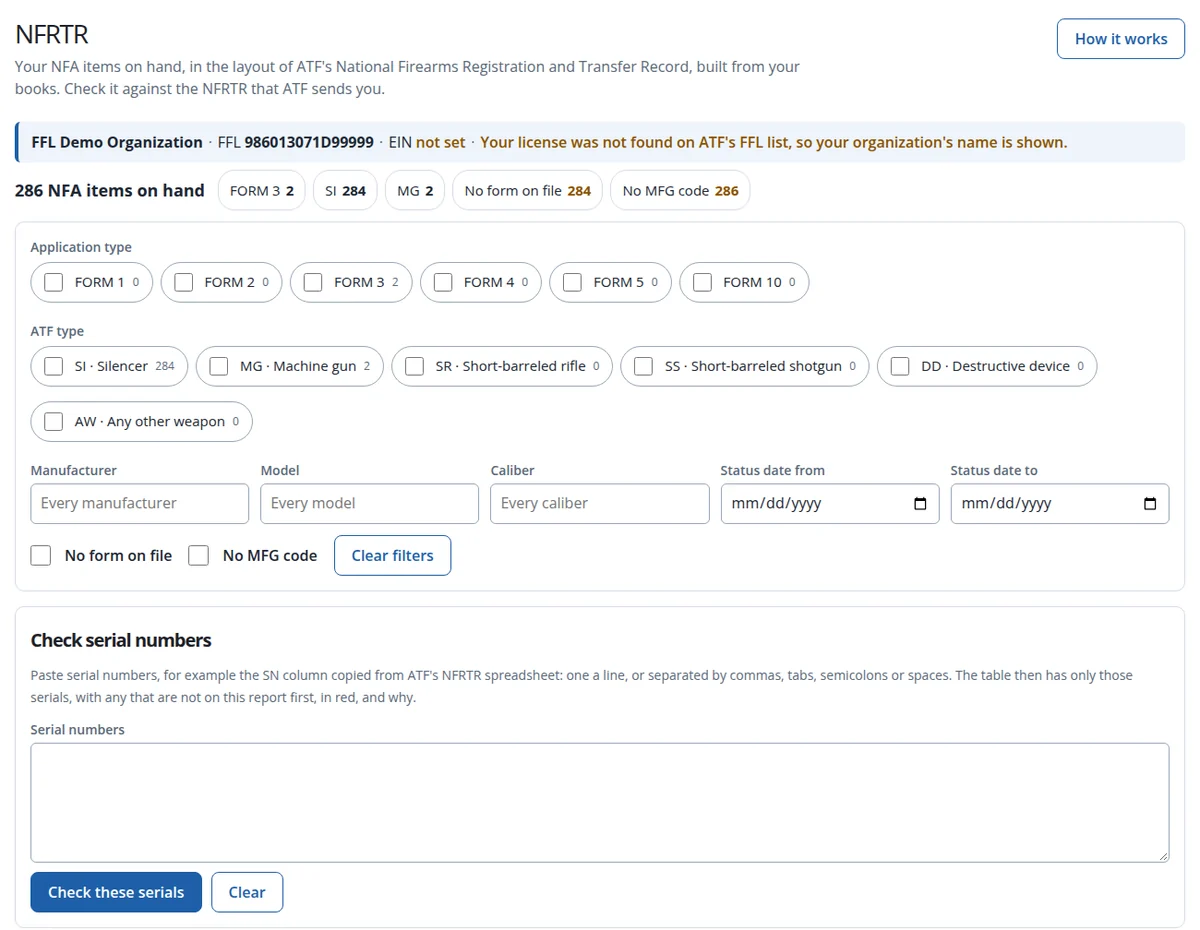
- Check serial numbers. Paste the SN column from ATF’s spreadsheet, up to 20,000 serials. Any serial that is not on your report comes first in red, with the reason: not in the portal, disposed (when and to whom), not an NFA type, not acquired, or a close match such as the same serial without dashes or leading zeros. A toggle adds the items on your report that are not in ATF’s list.
- Filters and counts by application type, ATF type, manufacturer, model, caliber, status date, no form on file and no MFG code. CSV and Excel exports come out in ATF’s layout and carry a note column when you have checked a list.
- Set it up once. Master level users enter the EIN and each manufacturer’s MFG code. NFRTR is on the Master Dashboard’s Inventory card for FFL organizations.
Training: the New Pages Lead
The new training pages are now the main ones in the menus and the Training Configuration Portal: the catalog and Programs, Award Credit, a Schedule where people find a seat, enroll, drop or join a waitlist, What I Still Need (requirement sets, expiring items and Training Pending, each with the next open seat) and a full Transcript. The Training Calendar shows every kind of session in one place. They use the same records as before, so nothing is lost or changed. The Legacy pages are still there and labeled as such.
Settings and Automated Emails
- Settings, rebuilt. Every card on the Settings page now saves on its own, in the same clean layout.
- Automated emails have their own card. Self-certification requests and expiring equipment warnings each go out on a day of the week you pick, with a fresh one-week link for each employee and a summary for their supervisors. The qualification lapse notices’ day is in the same card. Every automated email starts off. Nothing is sent for your organization until a master level user turns it on.
Data Import: Bring In Your Own Spreadsheets
Master level users can now import data themselves, with no help ticket needed. Choose what you are importing from nine kinds: employees, employee email addresses, Supervisor Plus or Inventory Master logins, locations, and, for law enforcement agencies, serialized assets plus assigning them to employees and returning them. Each kind comes with a sample file.
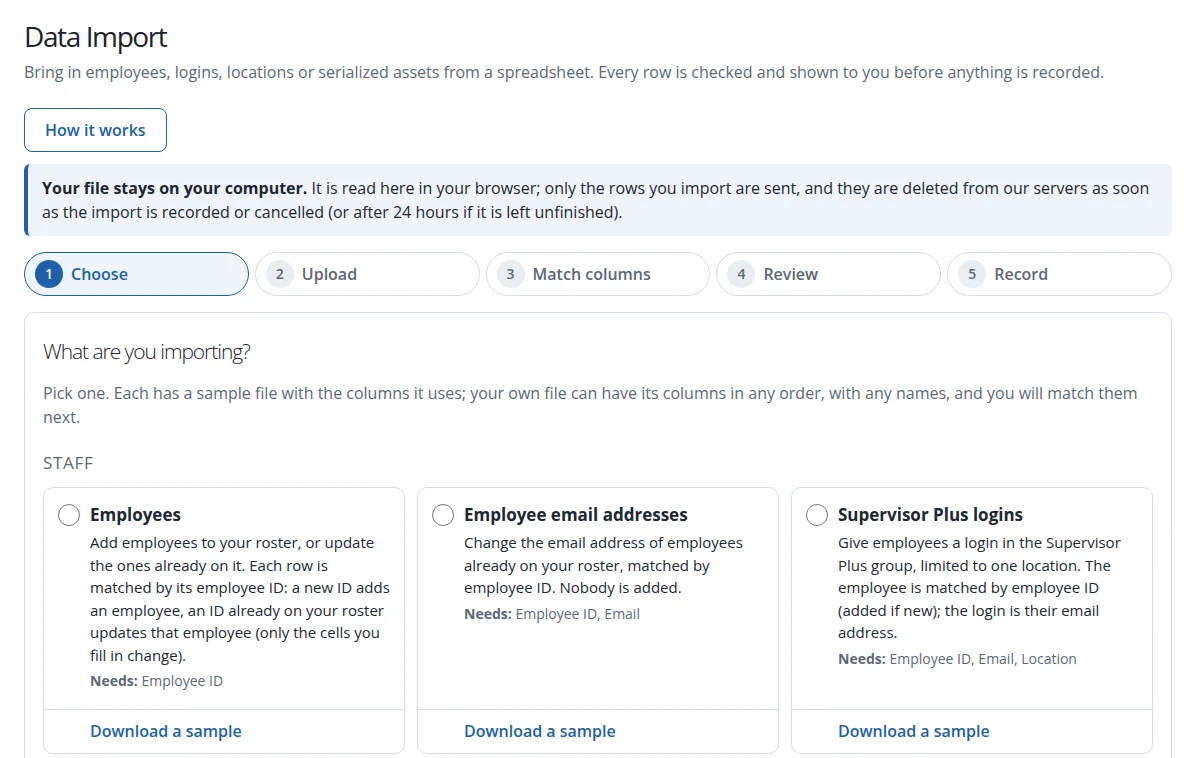
- Your file stays on your computer. A CSV or Excel file is read in your browser. Only the rows you import are sent, and they are deleted from our servers once the import is recorded or cancelled.
- Match the columns to the fields. APB360 guesses from your headers, can split a full name, and remembers your choices.
- Review every row before anything is written. You see what will be added, what will be updated and how, what is already up to date, and any problems by column. Problem rows download as a CSV to fix.
- Recorded in chunks with a progress bar, then a receipt on the page and by email. An existing employee ID updates only the cells you filled in.
Finding Your Way: Help for Every Page
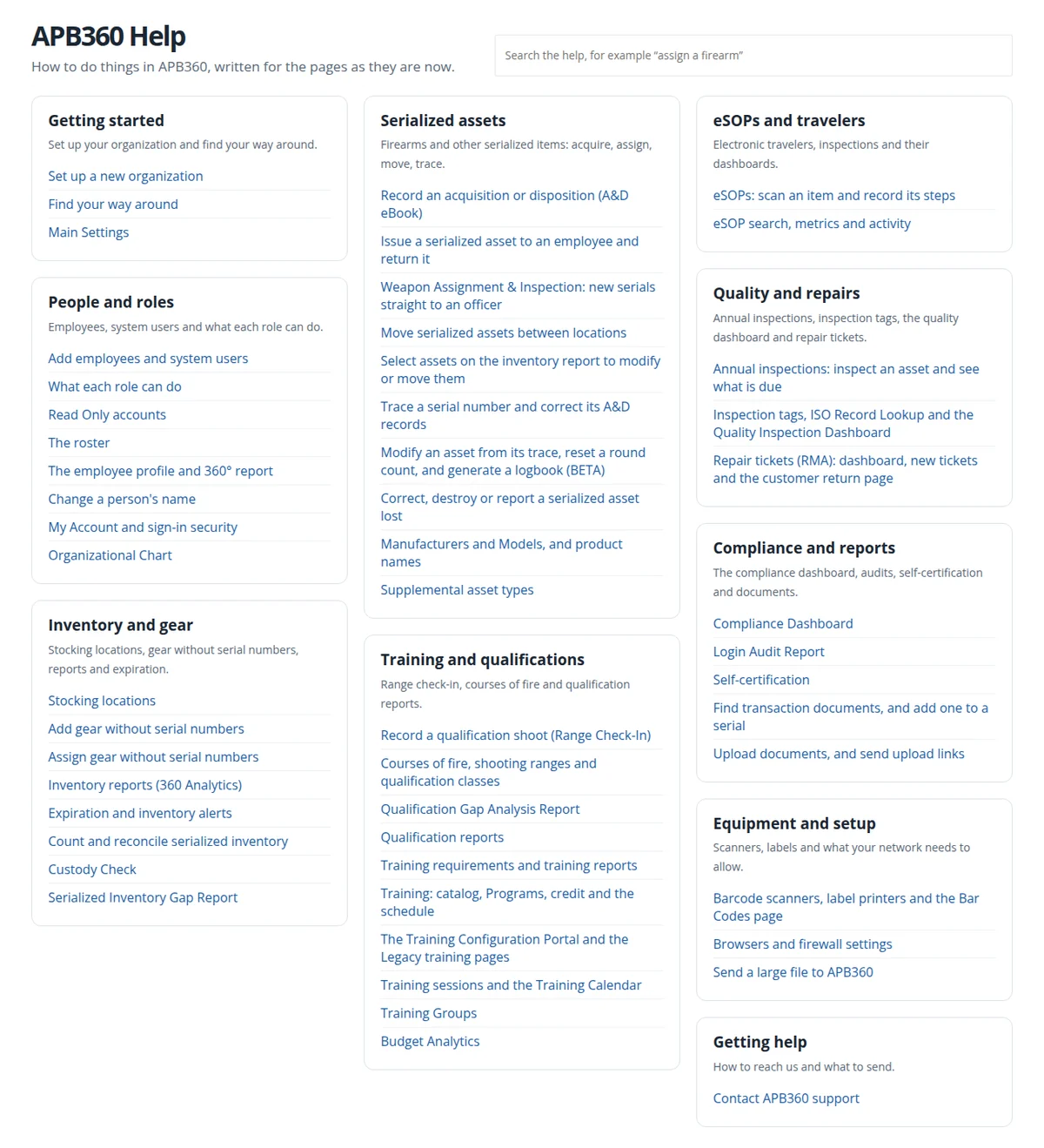
- A help center inside the portal. Every page people can reach has an article, written against the pages as they are today. Search as you type. The Help link opens the articles for the page you are on, and agencies and FFLs each see the articles that apply to them. It fills a large screen and is laid out for thumbs on a phone.
- Favorites and recently visited pages. A thin bar under the header: star a page to keep it there, and open Recent for the pages you visited last and use most.
- The Master Dashboard is home for law enforcement master users and compliance officers too, with the inventory report cards under the tools and every eSOP and inspection page in one card.
- No more dead ends. Pages we have retired, ShotPM first, now open a “Welcome to the new APB360” page that points to the new way of doing things. Two old pages now go straight to their replacements.
Also This Week
- iPhone photos (HEIC) now show as pictures, not broken images, on the trace’s Related documents, the Annual Inspection Report, inspection tags, ISO Record Lookup, eSOP scan steps, the asset gallery and Asset Files. The original is always one click away, and previews drop the photo’s location data.
- Read Only accounts see everything a master sees and change nothing, enforced across the portal.
- Cases load and search quickly even for organizations with half a million cases. A whole case code is looked up directly, and a serial’s page has a Trace button.
- More rebuilt pages are live: the Compliance Dashboard, Quality Inspection Dashboard, Organizational Chart, Rapid Check-in, Upload Documents, Theft/Loss, Serialized Inventory Gap Report, Budget Analytics, inspection tags, the training hours report and the qualification schedule, range and score reports. Range Session can now set ammunition per shooter.
- Weapon Assignment & Inspection: choosing a manufacturer narrows the models, and a model narrows the types and calibers. You can add a new manufacturer, model or caliber in place.
- Global inventory is linked for Supervisor Plus, armory and compliance users, not only masters.
- Security hardening across the portal, as always.
The Lead Map and calling with Twilio or Telnyx have their own post. Related: the weekend release digest before this one, the A&D forms, Logbook Generation, and APB360 for Type 7+ manufacturers.
Want training on any of this? Email help@apb360.com or call 251-677-7978.