
Release Digest: Our Own Help Desk, How-To Videos, the Permissions Map, Custom Groups and Range Session Reports
Everything below is live in the APB360 portal now. Support has moved to a help desk we run ourselves, and most help articles now come with a short narrated video. Master users can see who can open every page and build their own groups. An alert bar keeps what needs attention in view on every page. Range Session prints a detailed report when you finalize. Search works the way people type names. And much of this week came straight from your help tickets. Here is what changed since our last digest.
Support: Our Own Help Desk, and a Video for Every Lesson
- A new help desk, built by APB360. Email help@apb360.com as always, or use the Help button inside the portal, which now opens our own ticket form. Each request becomes a ticket with a reply to your inbox, and the same people who build APB360 answer it. Old support links still work and point to the new form.
- 62 how-to videos. Nearly every help article now opens with a short narrated video that walks through the page on a demo organization, step by step, with captions. Topics run from setting up a new organization and the roster to A&D forms, Range Session, training, inspections, eSOPs, NFRTR and the Lead Map. A video loads nothing until you press play.
Access: the Permissions Map and Custom Groups
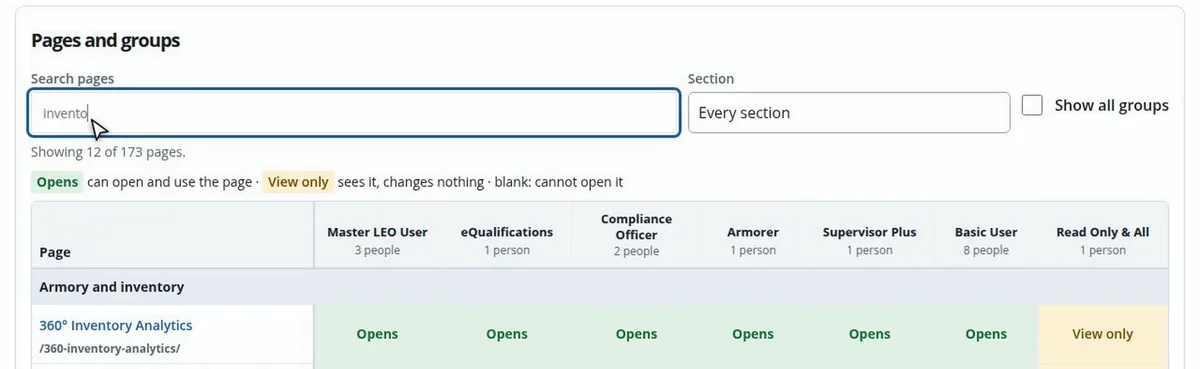
- Permissions Map. Master level users get one page that answers “who can open what”: every page down the side, every group across the top, and whether each group can open the page, only view it, or not reach it at all. Choose a group to see what it is for and who is in it, a page to see who reaches it, or a person to see every page they can open. It only shows; it changes nothing.
- Custom groups. Master level users can now build their organization’s own groups with exactly the pages and menu a job needs, and put people in one from the roster.
- Training lists keep a change log. A class, module or requirement set can now be renamed. Every edit, and every disable or enable, is kept with what it was before, what it became, who changed it and when. Each item has a History button.
Alerts That Stay in View
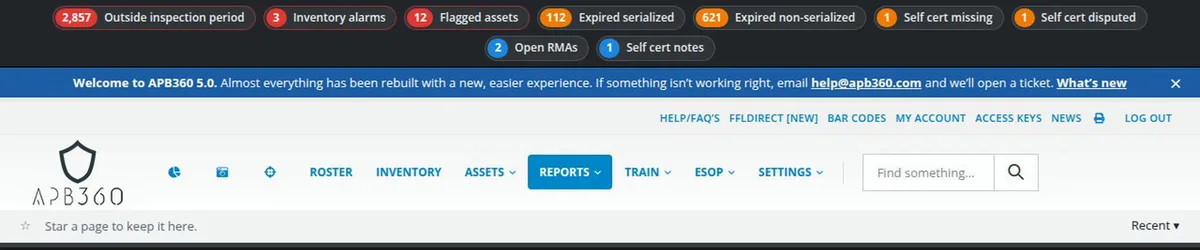
- An alert bar on every page. Assets outside their inspection period, inventory alarms, flagged assets, expired gear, self-certification problems and open repair tickets, each with a count you can click. In Settings you choose which alerts show, how many days ahead counts as expiring, and which groups, standard or custom, see each one.
- Inspection periods by asset type. Set how often each kind of serialized asset is inspected. Each asset’s standing shows everywhere it appears, and the Annual Inspection Report follows each type’s own period.
- More automated emails. Qualification expiry warnings go out a set number of days ahead, on the day you choose, to the employee, their supervisors or both. Inspection reminders are new. Asset and assignment expiration emails count whichever date comes first. A master CC list gets one organization-wide summary. As always, each email is off until a master level user turns it on.
Range Session: a Full Report When You Finalize
- A detailed, printable report. From Review & Finalize, print the whole session: the range, course and rules, every instructor, signatures, and the full date and time from start to end. Every shooter and firearm is listed with every attempt, score and result. Detail by shooter adds job class, serial numbers, ammunition, notes, files and the records Finalize wrote. Most sessions fit on one page.
- Emailed to you on Finalize, with the summary spreadsheet attached. The PDF download carries the same full report.
- Undo Finalize is available to everyone who can finalize.
- Qualification notices say more. Failed-attempt and maximum-attempt emails now open with the date, the range location and the employee’s class code, followed by the shooter, firearm, course, instructors and notes.
- Range Check-In, rebuilt. Search as you type, with each person’s badge, ID and last passed qualification, and who was at the range in the last two weeks.
- Qualification courses check before saving. You see what will be saved and confirm it. Attempts are optional (three by default), a course can be set to never expire, and errors name the field that needs fixing.
Search the Way People Type
- “Lee, Sc” works everywhere. Type a last name, a comma and the start of a first name in any table or employee search. Several words are each matched, and an exact employee ID or last name comes first. Agencies with thousands of employees find the right person on the first try.
- Search in chosen columns. Every data table’s search box has a Search in choice. Search only names, only badges, or any mix of columns, so a name no longer matches everyone that person supervises.
A&D and Inventory
- Corrections under complete lockdown. When your A&D book is locked down, master and compliance users can still correct a record’s A&D details, as often as needed. Every correction keeps the earlier version and records who made it and why. Nothing is ever deleted.
- Big acquisitions record in seconds. Serial number lookups were rebuilt, so an acquisition with hundreds of new serials now finishes in seconds instead of timing out.
- Every form on one page, if you like. A switch on each A&D form shows every step together, with one Review that points at anything missing. Step by step stays the default.
- Dispositions. Attach files on the first step, as acquisitions already allow. Disposition to an FFL lists your recently used FFLs and says whether an FFL or SOT is on file. Disposition to an individual searches every person and business on file, including the people you acquired from, so a firearm can go back to its owner. Disposition to an employee can include non-serialized gear, and scanning or pasting serials points out any it does not know.
- Expiration and warranty by lot. Record a lot, an expiration and a warranty end on each purchase. When you move or issue stock, APB360 suggests the soonest-expiring, oldest stock first. Assignments carry their own dates, and the Inventory Expiration Report lists lots and warranties.
- Assign gear from one type-ahead list of assets and packages, showing what each package holds and what is short. Packages record who disabled or deleted them.
- Department or personal. The employee profile shows whether each non-serialized holding belongs to the department or to the officer, with a toggle, and every change is logged.
- Reconciliation sessions. Only the person who started a count can change it. Their partner follows along read only, and counts update live on every open screen.
- Download the live logbook. The BETA logbook’s live view now downloads exactly what it shows, as a report, a 27 CFR 478.121 report, or CSV.
- Clearer dates. Modify shows Manufacturer Warranty Expiration and, while someone holds the asset, Employee Assignment Expiration. Date boxes offer “No date”.
- Global inventory has an Only assigned switch beside Only on premises, and both counts follow your search.
The APB360 API
- Acquisitions and dispositions from the API, including new serials in an acquisition, acquisitions from an employee for law enforcement, and asset type changes.
- Document uploads from the API, in bulk and linked to serials, with all their details.
Integrators can email help@apb360.com for the API guide.
Also This Week
- The Lead Map filters by any of your geofences, and Export CSV works again.
- One sign-in lockout now covers the portal, the API and the help desk together, so guessing a password in one place does not reset the count in another.
- A security release for the platform’s web software was applied the day it came out.
- Cleaner email: routine table saves are still recorded but no longer send email.
Related: the November 14 digest, the weekend release digest, the A&D forms, training and qualifications and armory and inventory.
Want training on any of this? Email help@apb360.com or call 251-677-7978.