
Range Session: The Range Day Tool Every Range Training Officer Has Been Waiting For
No more one shooter, one form, one firearm at a time. Range Session lets one range officer record an entire trip to the range: everyone on the line, every firearm they shoot and every attempt they make, then finalize the whole group in one step. It is the biggest change to how APB360 records range training since we started, and it is available now, in BETA, beside the Range Check-In you use today.
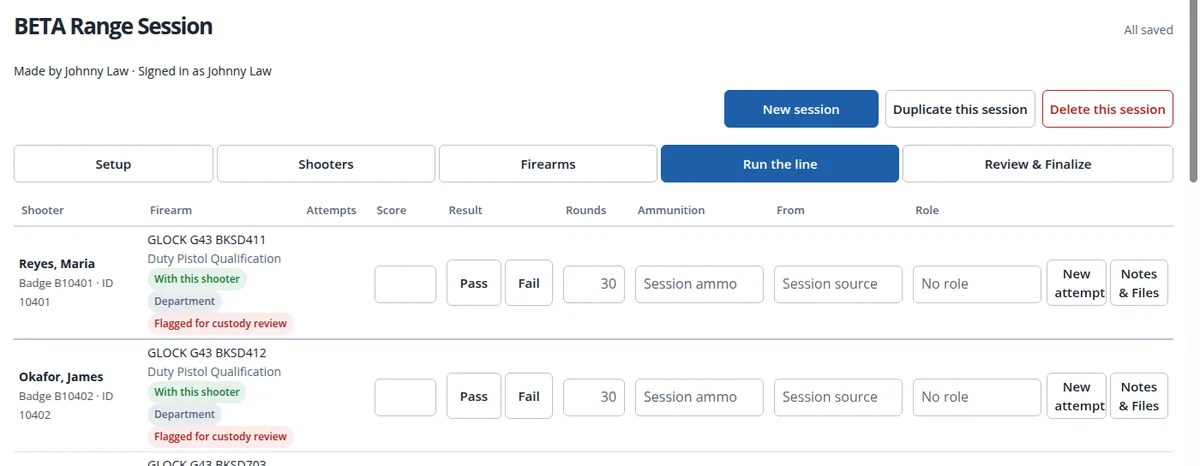
What a Range Session Is
A Range Session is the whole range event, kept together from the moment you set it up to the moment you sign off. It moves through five steps:
- Setup: the mode, the range, the course of fire, the instructors, the times and where the session’s ammunition comes from.
- Shooters: search by name, badge, employee ID or email, or add a whole Training Group in one tap.
- Firearms: the firearm each person carries, one from your on-premises stock, a firearm type only, no firearm, or a serial number scanned or typed on the spot. One button adds each person’s course firearms for you.
- Run the line: scores, Pass or Fail, rounds, ammunition and role for every attempt.
- Review & Finalize: see exactly what will be recorded for each shooter, and what is still missing, before anything becomes official.
Nothing becomes an official record until you finalize, so a typo on the line never lands in a qualification history.
Sessions That Last as Long as the Training Does
Real range training does not always fit in one afternoon. A Range Session has no time limit: it stays open for days, weeks or months, until you finalize it.
- Finalize people as they finish. Each shooter is finalized on their own, so the officers who qualified on Monday are on the record Monday, while the night shift finishes next week. The session shows as part finalized until the last person is done.
- Pick up where you left off. When you leave Setup, APB360 emails you a Continue This Session link, and your sessions are listed with the one you worked on last at the top.
- Nothing is ever lost. If Finalize is interrupted, finalize again: only the shooters not yet finalized are touched.
- Run it again next quarter. Duplicate this session copies the setup, instructors, shooters and firearms into a fresh session, without scores, signatures, notes or files.
Three Kinds of Range Time
- Qualification: scored against your course of fire. A score is judged Pass or Fail against the course minimum, a blank score is never a pass, and a failed attempt uses the course’s full round count.
- Open Range: practice and recurring range time, with no course or score: record who shot, what, and how much ammunition.
- Remediation: extra range time for someone who needs it, tied to the course it remediates, with the hours recorded for each person.
Every Attempt Counts, and the Latest One Decides
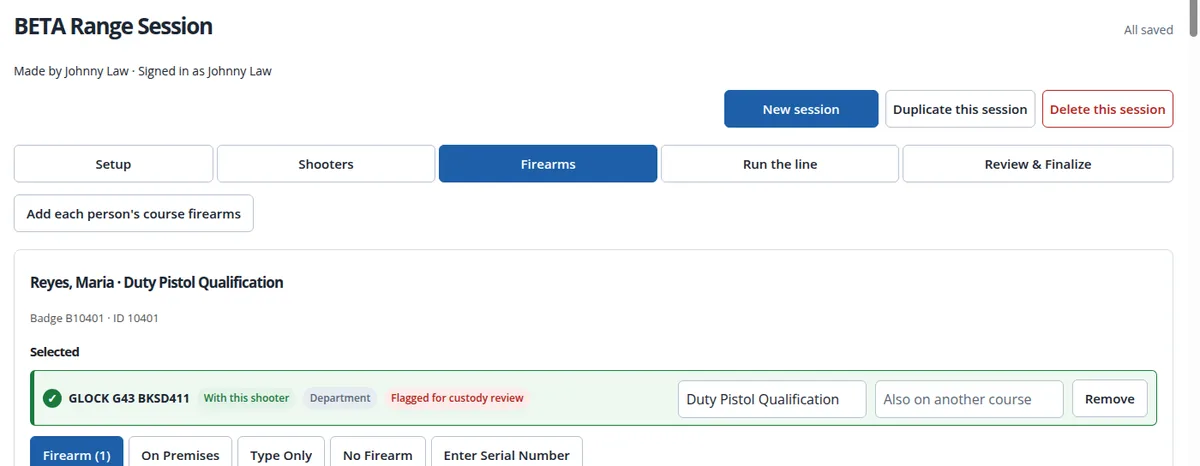
- Several firearms and attempts per person. New attempt keeps the ammunition, source and role from the last one, so a second string takes seconds.
- Every attempt is kept, and the most recent one decides the result, the score and the reports, including the expiring qualifications report.
- Attempt limits that mean something. Going past the course’s allowed attempts needs a note, and supervisors are notified when the session is finalized.
- Custody you can trust. Each firearm shows whether it is with that shooter, department owned or at a location. A serial that is not where APB360 expects is flagged for custody review instead of being quietly accepted.
- A qualification belongs to the person who shot it, and stays on their record whether or not they still carry that firearm.
Built for the Range, Not the Office
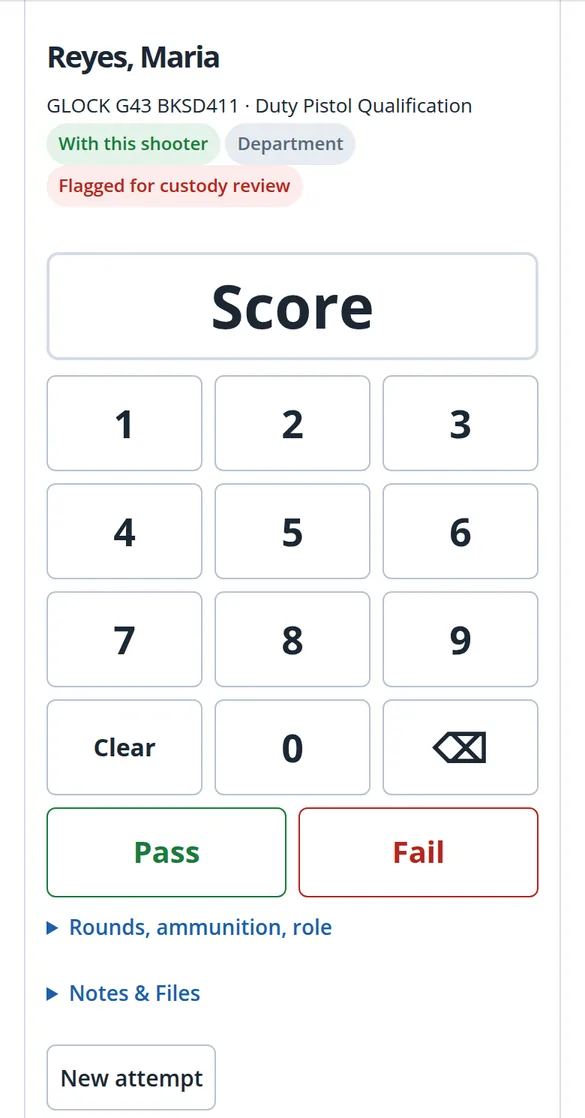
- A spreadsheet at the desk, a number pad on the phone. On a laptop the line is a grid you can type straight down. On a phone it is one shooter at a time, with a large number pad and big Pass and Fail buttons.
- Keeps working when the signal drops. Entries are saved on the device and sent the moment the connection is back. The page tells you how many are waiting for signal.
- Ammunition that adds up. Choose where the session’s ammunition comes from, and APB360 reduces exactly that location’s inventory at Finalize. Shooters can use their own issued ammunition, too.
- Signatures when you need them. Instructor and shooter signatures are optional unless the course requires them, and a missing signature holds back only that shooter.
- Files for everyone or for one person: target photos, score sheets and paperwork, up to 25 MB each.
Review Before Anything Is Official
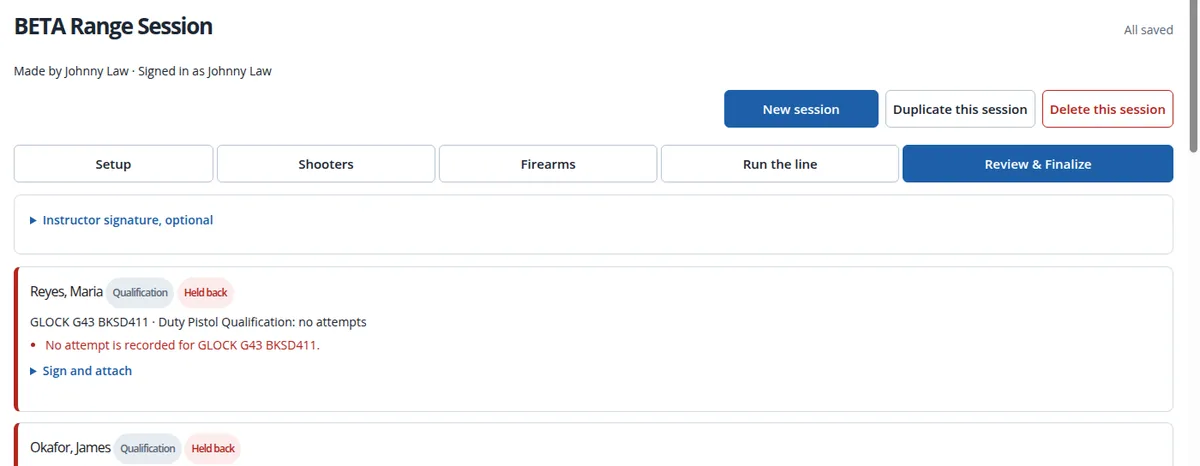
The review shows what Finalize will write for each shooter and what is holding anyone back, like a firearm with no attempt recorded or a signature the course requires. Fix it, or finalize everyone who is ready and come back for the rest.
See Who Needs Help: Failed Attempts and Remediation
Failed attempts and remediation now have a home. Each person’s 360° profile shows a Failed attempts & remediation timeline (it stays out of the way when empty), and the Failed attempts & remediation report finds everyone with at least a given number of failures, remediation sessions or remediation hours in any date range.
Training Groups You Can Shape Yourself
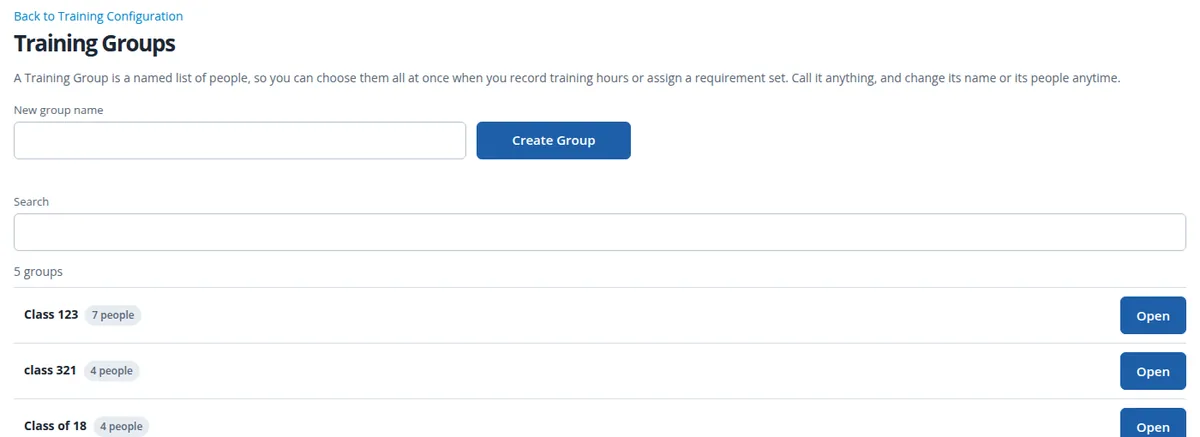
A Training Group is a named list of people, such as a shift, an academy class or a SWAT team, so you can pick them all at once. Create one by name, rename it, and add or remove people with search, filters and bulk changes, with undo if you change your mind. Use a group to fill a Range Session’s line, to record training hours for everyone in it, or to assign a requirement set to a whole team.
Scheduling Training
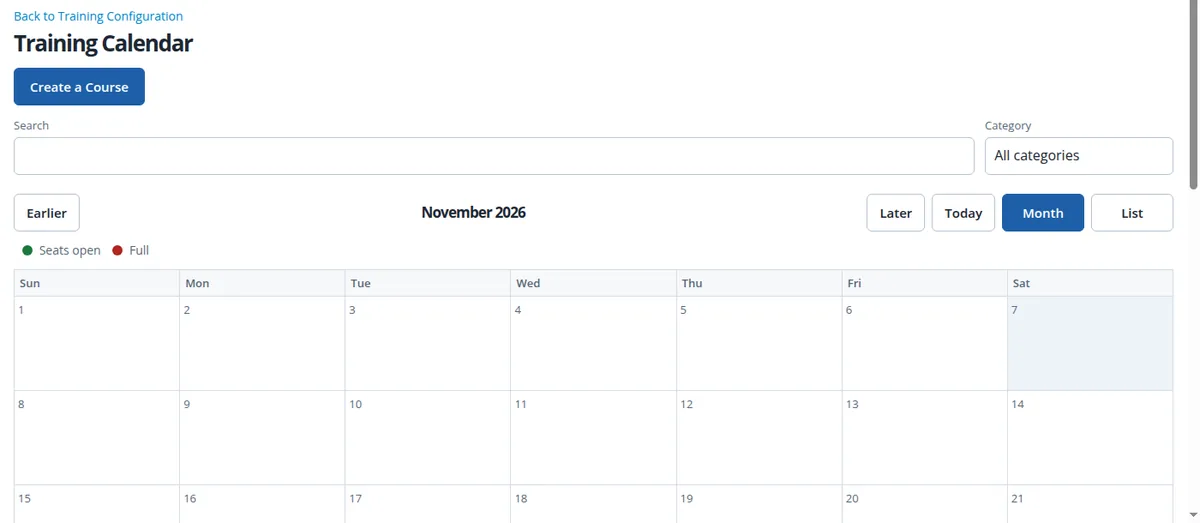
- Schedule a course: combine modules, then set the dates, instructors, capacity and location.
- The Training Calendar shows every scheduled class and course by month or as a list, with search, a category filter and whether seats are still open.
- Sign-ups and invitations: each class session takes sign-ups and results, and its broadcast emails carry a calendar file and an RSVP.
- Range Sessions carry their own start and end times, and you can open one as early as you like and fill it in on the day.
The Training Configuration Portal, Rebuilt
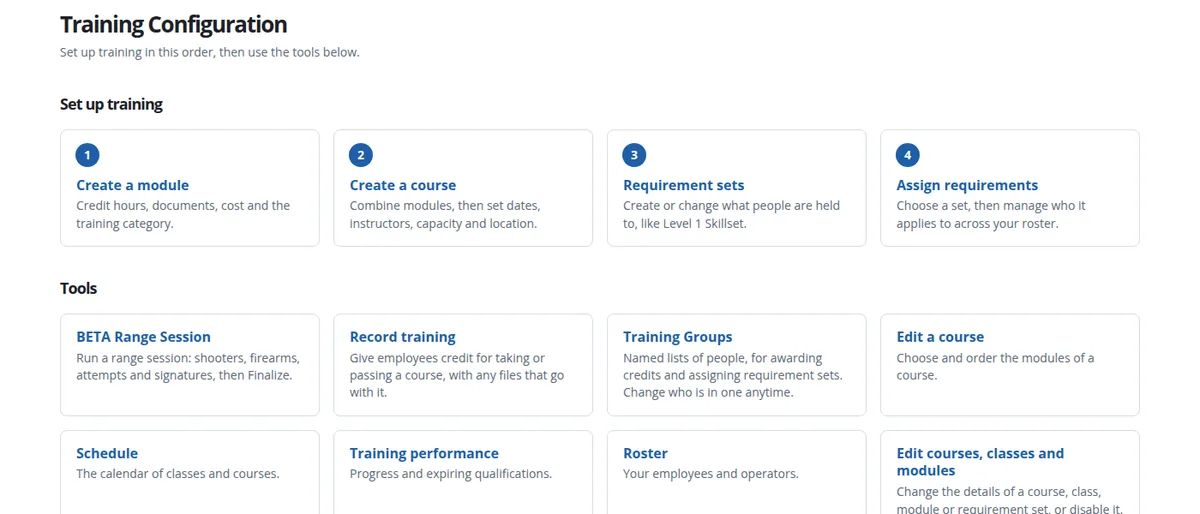
Every training tool now lives on one page, rebuilt from the ground up, in the order you actually set training up:
- 1. Create a module: credit hours, documents, cost and training category.
- 2. Create a course: quick or full, from several modules, with files.
- 3. Requirement sets: create, edit or copy what people are held to, like a Level 1 skill set. A set is a live policy: change it and everyone it applies to follows.
- 4. Assign requirements: choose a set and manage who it applies to across your roster, including a whole Training Group at once.
- Record training: give people credit for a course, with files, after a preview of exactly what will be recorded.
- Edit a course to choose and order its modules, and Edit courses, classes and modules to change details or retire one without losing its history.
- Schedule, Training performance and Roster one click away: the calendar, progress and expiring qualifications, and your people.
Who Can Use It
Range Session is for master and compliance users, range staff and instructors; read-only accounts cannot use it. The Training Configuration portal is for master, compliance and call center manager users, with requirement sets kept to master-level users. Open Training Configuration under Train in the APB360 portal and choose BETA Range Session, or use the BETA Range Session button on Range Check-In. Range Check-In keeps working exactly as it does today.
Related: qualification threshold scoring and the 360° employee profile.
Questions or ideas? Email help@apb360.com or call 251-677-7978.