
Employee Custody: Everything Each Officer Holds, on One Page
Who has what, and is it accounted for? The new Employee Custody page answers both on one screen. It lists everything each employee or officer holds: serialized firearms and gear, and non-serialized items such as ammunition, uniforms and equipment. It shows what needs attention, lets you take assets back from many people in one step, and keeps people who are leaving from walking out with agency property. It works for law enforcement agencies and FFLs alike.
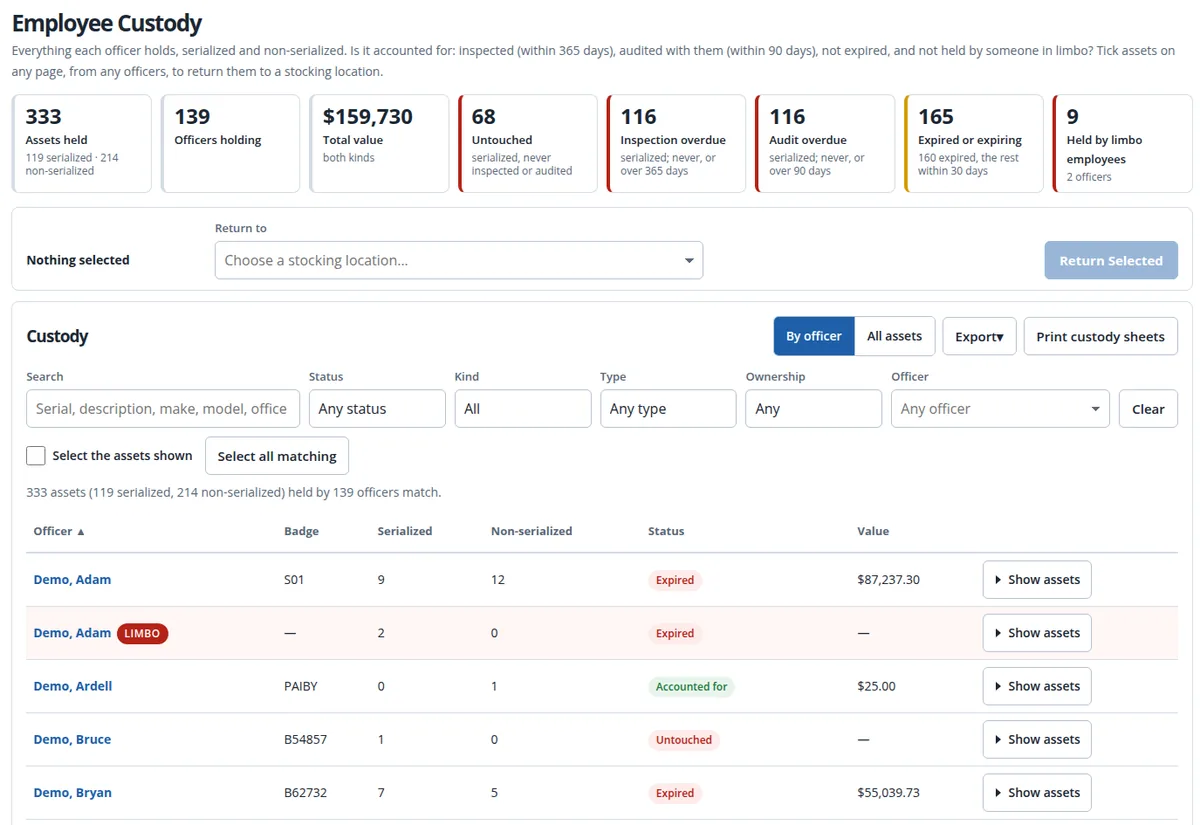
At a Glance: What Needs Attention
- Tiles you can click. Across the top: assets held, split into serialized and non-serialized; how many people hold something; the total value; assets that are untouched (never inspected or audited); inspection overdue; audit overdue; expired or expiring; and assets held by people who are leaving. Click a tile and the list below shows only those assets.
- Grouped by person. Each employee is one row with a count of serialized assets, a count of distinct non-serialized items, a status and a value. Switch to All assets to see one row per asset instead.
- Search and filters. Search by serial, description, make, model or officer, and filter by status, kind (serialized or non-serialized), type, ownership (department or personal) and person.
- Fast on large rosters. Every view is built on the server, so the page stays quick for the largest agencies. On a roster with about 16,700 holdings, a page of employees loads in about a third of a second.
Everything One Person Holds
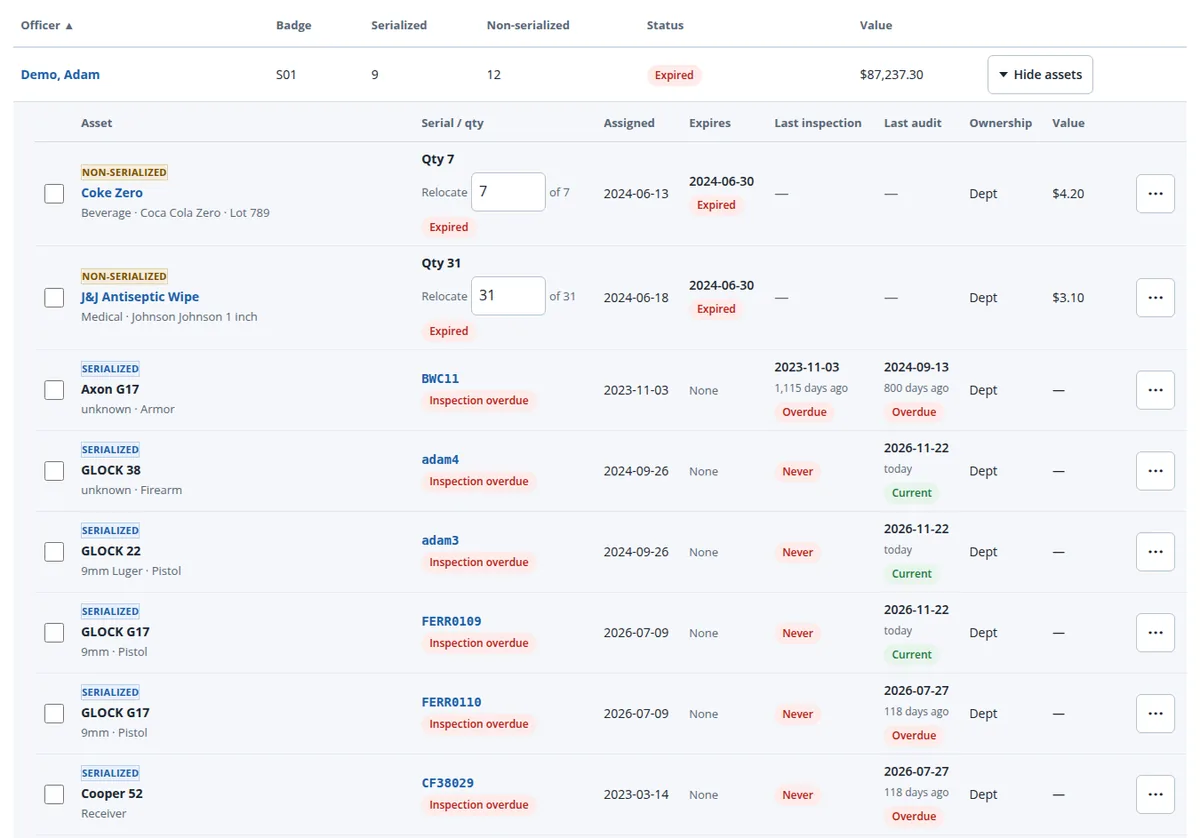
- Open a person to see each asset they hold, labelled serialized or non-serialized.
- The details that matter for accountability: when it was assigned, when it expires, the last inspection and the last audit with how long ago each was, whether it belongs to the department or the officer, and its value.
Return Selected: Take Assets Back in One Step
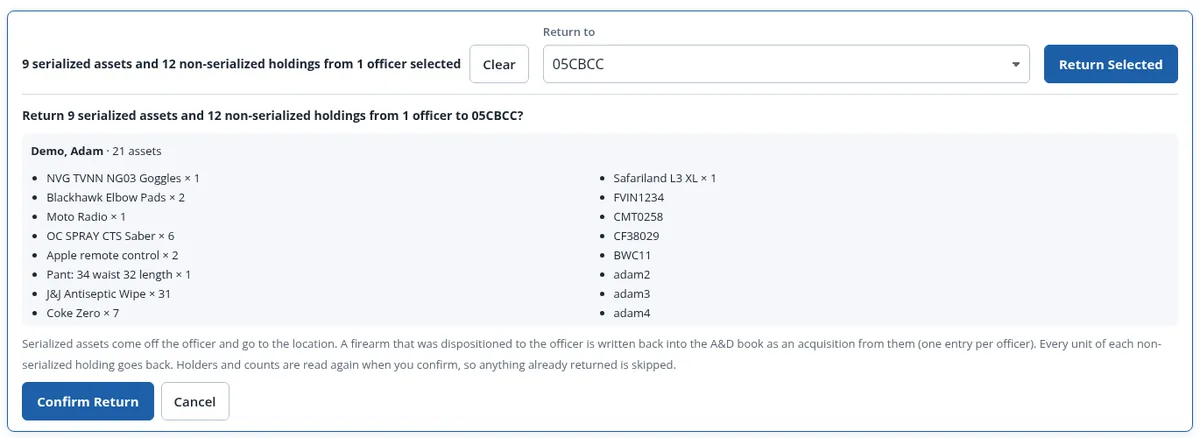
- Pick assets across people, on any page of the list, or all of one person’s assets with one button. Choose a stocking location and press Return Selected.
- Review before anything changes. The review lists what will come back, grouped by person. Press Confirm Return to finish, or Cancel.
- Part of a holding. For non-serialized items you can return part of what someone holds: relocate 3 of 7, and the officer keeps the other 4.
- The A&D book stays correct for your organization. For law enforcement agencies, a firearm that was dispositioned to the officer is written back into the book as an acquisition from them. For FFLs, employee custody never touches the A&D book.
Limbo: Nobody Leaves Holding Agency Property

- People who are leaving but still hold assets are flagged. An employee who is coming off the payroll or being marked retired while assets remain on their profile is in limbo.
- They cannot be retired with assets on their profile, and they retire automatically once everything has been returned.
- Hard to miss. Their profile carries a red banner, and the Employee Custody page has a limbo view of everyone in that state, with a Return assets button.
Exports and Custody Sheets
- CSV, Excel and PDF. The Excel file has one sheet of employees and one of assets. The PDF is landscape and shows your organization, the filters you used and the date.
- Printable custody sheets list what each person holds, with a signature line per person, ready for an issue check or a separation.
Where to Find It
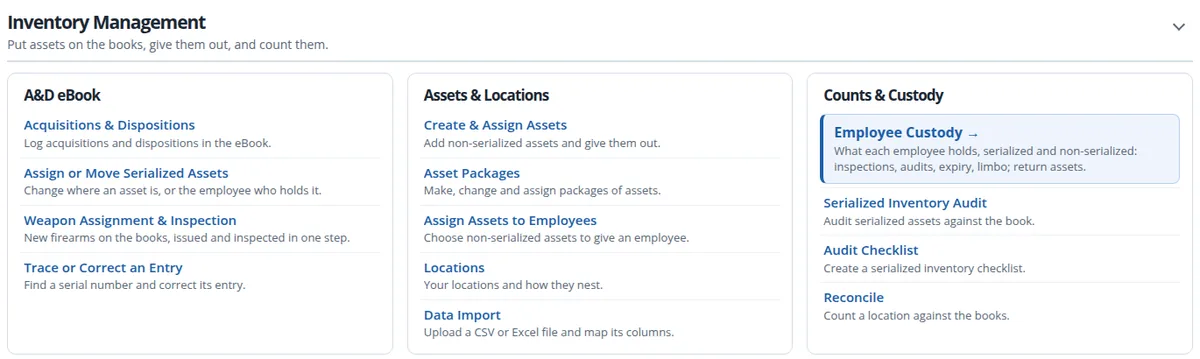
Open Employee Custody from the Master Dashboard, where it is highlighted under Counts & Custody. It brings together what used to take several custody and inventory reports, and it builds on the one custody model for agencies and FFLs introduced on November 7. There is nothing to turn on.
Related: the November 20 digest, the Inventory Shop, armory and inventory and expiring duty equipment.
Want a walkthrough? Email help@apb360.com or call 251-677-7978.